Navigating the Content Editor Interface
The Webflow Editor is where you’ll make all of your content updates. When you open the Editor, you’ll see a preview of your website along with a few tools that allow you to edit text, swap images, and manage Collection items.
Here’s a quick overview of what you’re looking at inside the Designer when in Content Editor mode.
.avif)
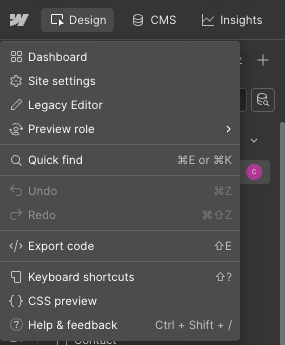
1. Main menu
Click the Webflow logo to access the main menu. From here, you can return to dashboard, go to site settings, preview a different role, undo or redo, and more.
2. Page navigator
Switch between pages on your site and handle page settings like titles and SEO descriptions.
3. Assets panel
Upload and manage all of the assets (images, documents, etc.) on your site. You can add alt text and compress images from here. Learn how on our images lesson.
4. CMS
Opens the CMS (content management system) where you can manage all of the collections on your site.
5. Canvas
This is the live view of your website.
- You can click directly on text to edit it.
- Click on images to replace them.
- Any content that can be edited will highlight when you hover over it.
Most content updates are made directly on the page preview, which helps you see changes in context as you work.
6. Comment mode
Switch to comment mode to leave comments directly on specific elements of the site. You can also view all comments made by everyone across the site.
7. Preview
View a full screen preview of your site. Note that the preview may not show a complete 1:1 of your live site as it does not show code, unless enabled.
8. Publish Button
Publish to your staging or production domains. Any changes you make must be published to go live. Learn more on our publishing lesson.