Webflow automatically creates backups of your site so you can restore a previous version if something goes wrong. A backup saves the full state of your site at a specific moment in time.
What Backups Are For
Backups are helpful when:
- A major change causes layout or styling issues
- Something gets deleted accidentally
- You want to undo a large batch of edits
- You need to revert to a known, stable version of the site
Restoring a backup is like turning back the clock to an earlier version of your entire project.
How Backups Work
Automatic Backups
Webflow creates backups when you:
- Publish the site
- Import CMS content
- Make large structural changes in the Designer
Manual Backups
You can also create a backup manually before making big changes.
Example: before redesigning a page or updating global styles.
How to Restore a Backup
- Go to your Webflow Dashboard.
- Under your project, click the three dots → Project Settings.
- Open the Backups tab.
- You’ll see a list of all automatic and manual backups, each with a timestamp.
- Use the preview button to see which version you want to restore.
- Click Restore on the version you want.
- Confirm the restore.
Your site will return to that exact version.
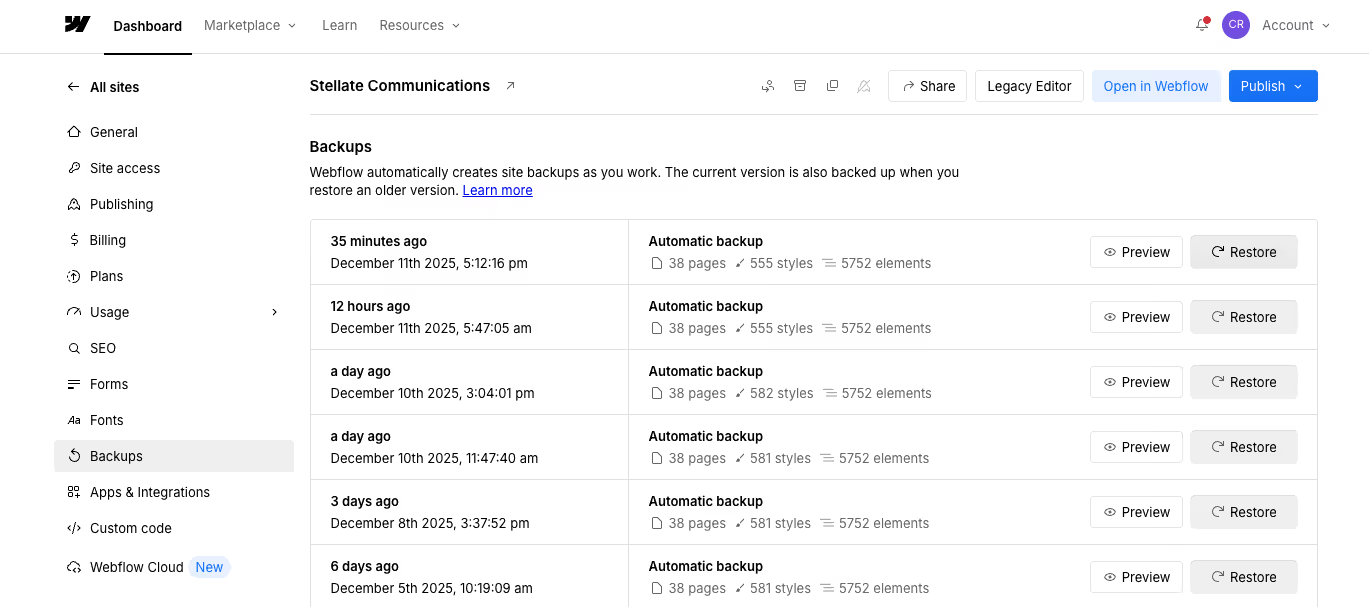
Note: Restoring a backup does not delete backups or erase your current work permanently — you can always restore a more recent backup if needed.
Previous lesson:
Next lesson: