Use a Section Template
Section templates let you quickly build a page using pre-designed layouts that match your site’s design. These templates control structure and spacing so you can focus on adding content, not layout.
Adding a Section Template
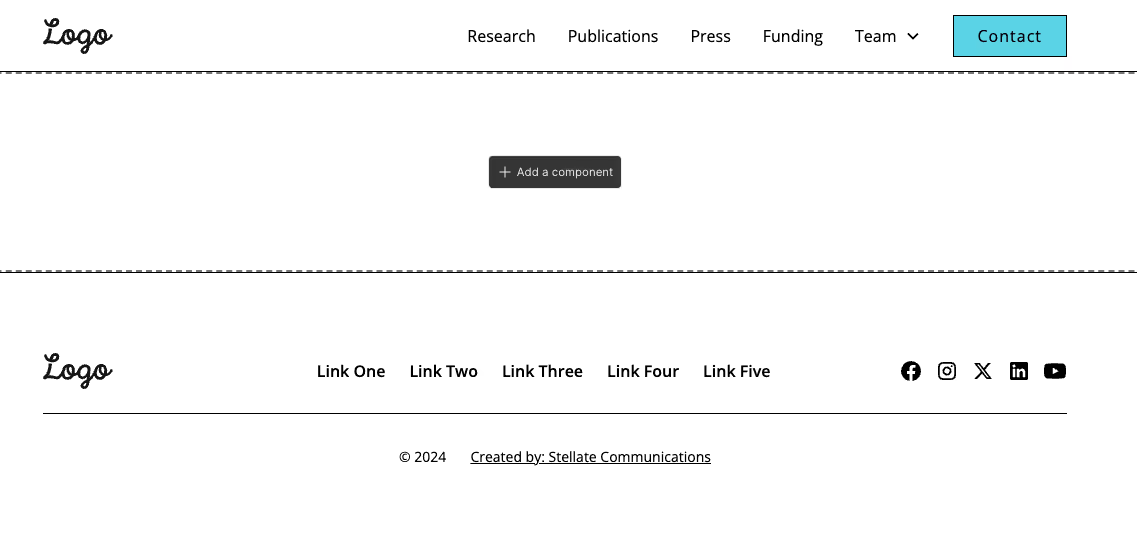
- On a new blank page, you’ll see your site’s navbar at the top and footer at the bottom, with empty space between them.
- Hover over this empty space and click Add a component.
- A list of available components will appear.
Choosing a Section
- The first category contains Section components.
- One option is a Blank Section.
- The remaining options are Section Templates (pre-built layouts).
To add a section:
- Click on a section, or
- Drag it into the center of the page.
Component Variants
After adding a section, you may be asked to choose a component variant.
A component variant is a predefined version of the same section layout.
Each variant uses the same structure but with different arrangements, such as column order or background color.
Select the variant that best fits your content. You can change it later if needed.

Filling in the Content (Properties)
Once the section is added, you’ll edit its content using the Properties panel.
Properties are the editable fields connected to the section, such as:
- Headings
- Paragraph text
- Images
- Buttons and links
To update content:
- Click on the section
- Fill out or update the fields in the Properties panel on the right hand side
- The page will update automatically as you make changes
You won’t need to click directly on the text — the Properties panel controls the content for the entire section.