The Project Settings area in Webflow contains all of the behind-the-scenes controls for your website. This is different from the Editor or Designer — Project Settings is where you manage things like hosting, domains, backups, SEO, and forms.
You won’t use these settings every day, but it’s helpful to understand what lives here and what each section is for.
How to Open Project Settings
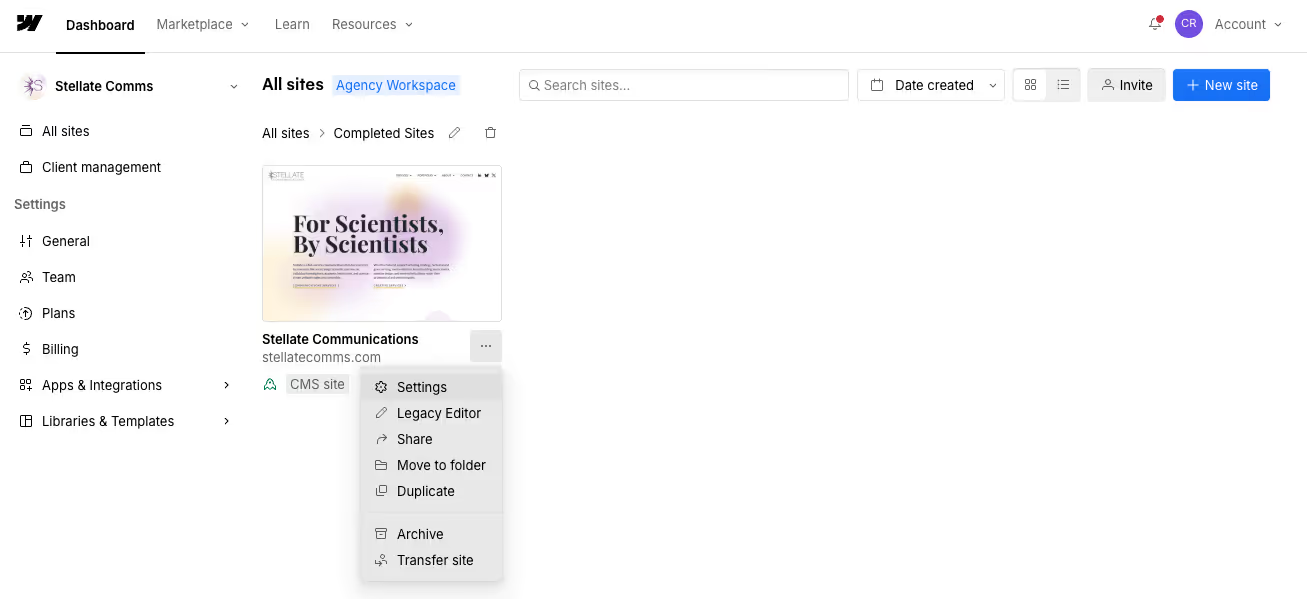
- Go to your Webflow Dashboard.
- Find your website.
- Click the three dots under the project thumbnail.
- Choose Project Settings.
Main Sections in Project Settings
Below is an overview of the tabs you’ll see and what they are used for.
1. General
- Site name
- Favicon and webclip
- Time zone
- Language
- Basic configuration details
You typically won’t need to adjust these unless you are renaming your site or updating your branding.
2. Hosting
- Hosting plan
- Custom domain setup
- SSL security
- Automatic backups
- Publishing options
Most clients won’t need to change anything here once hosting is set up, but this is where you would point your domain or troubleshoot domain issues.
3. SEO
- Search engine metadata
- Default title and description templates
- Sitemap controls
- Site indexing settings
All of these will have already been set up for you, so there’s no need to change anything unless you’re working with an expert.
4. Forms
- View and export form submissions
- Update form notification emails
- Set where submissions get sent
Important if your site includes contact forms, application forms, or newsletter sign-ups.
5. Integrations
- Google Analytics
- Google Tag Manager
- Facebook Pixel
- Other tracking or marketing tools
Only update these if you're integrating new platforms.
6. Custom Code
- Add site-wide code snippets (Header/Footer)
- Embed tracking scripts or tools not supported by integrations
Custom Code is typically managed by developers or advanced users, since changes here can affect how the site functions.
7. Backups
- View automatic and manual backups
- Restore your site to a previous version if necessary
Useful for emergencies, accidental changes, or undoing large edits that caused issues.
Best Practices
- Only make changes in Project Settings if you understand what the setting does.
- If you’re unsure about domain, hosting, or custom code settings, it’s best to check with your web team before making changes.
- Use the Forms tab regularly if your site collects submissions.
- If something seems off, check Backups before editing anything major.