To make changes to your website, you’ll first need to log into Webflow. Your site lives inside Webflow’s platform, and you’ll use the Dashboard to access it. From there, you can choose either the Editor (for content updates) or the Designer (for more advanced changes).
Steps to Access Your Site and Dashboard:
- Go to https://webflow.com/login.
- Bookmark this page for easy access in the future.
- Log in with your email address and password.
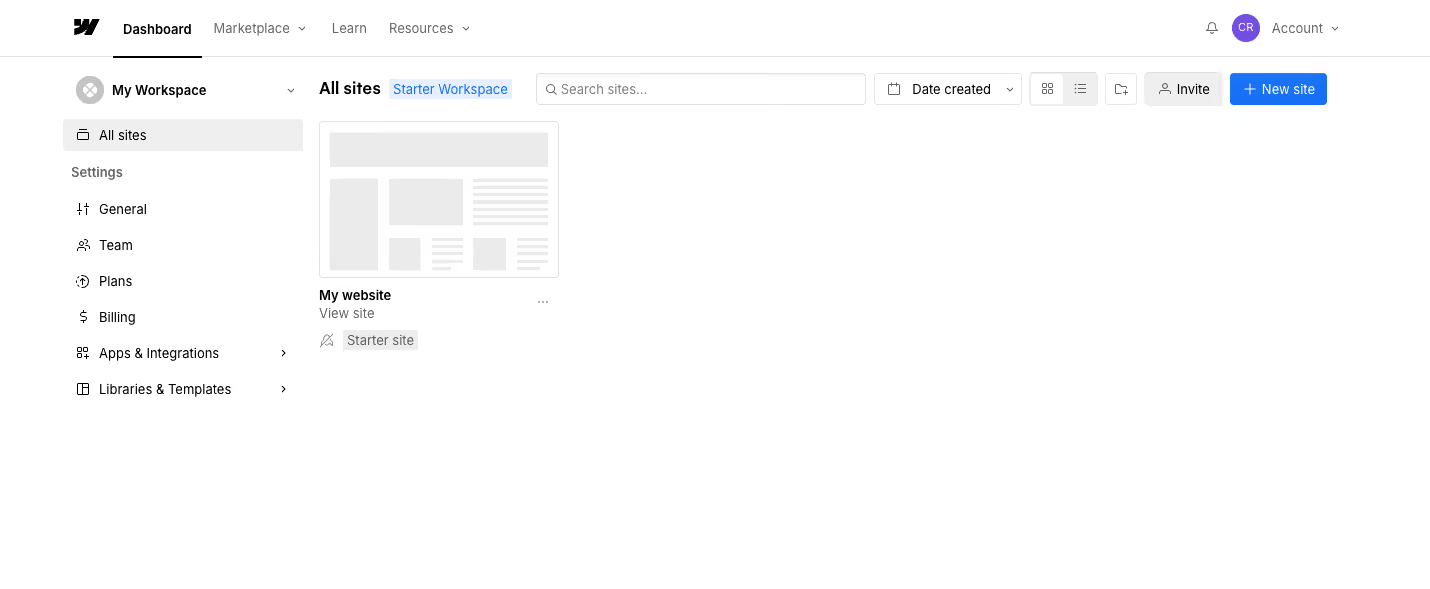
- Once logged in, you’ll land on your Dashboard.
- This is the homepage for your account in Webflow.
- You’ll see a list of all sites connected to your account.
- If you only manage one site, you’ll just see that single site listed.
Notes & Troubleshooting
Cannot see your site in the Dashboard?
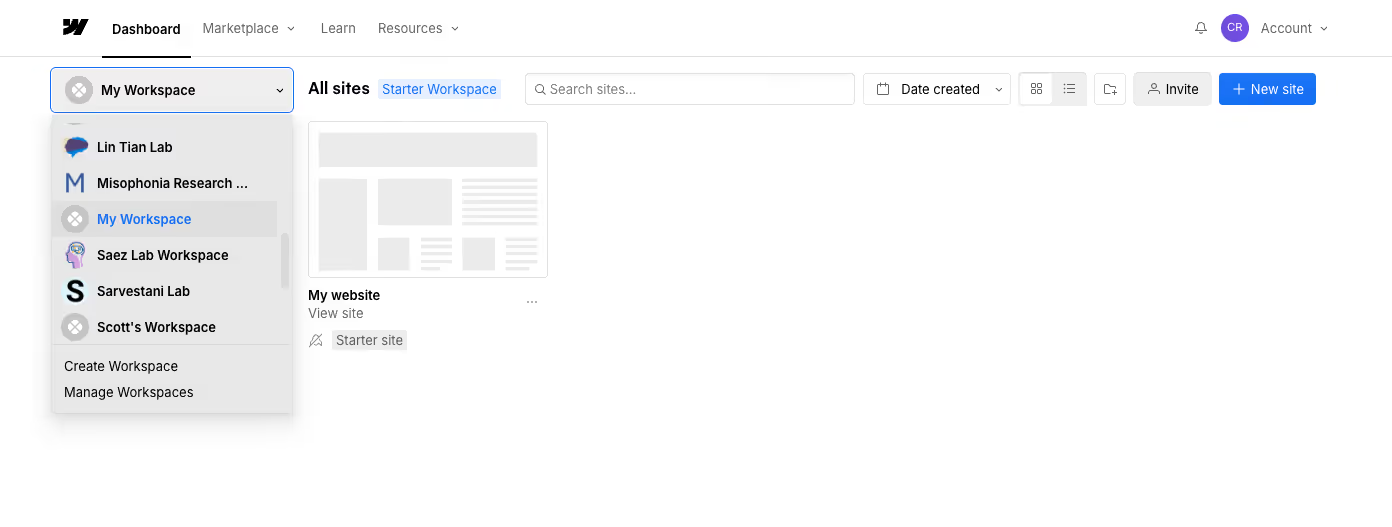
- Make sure you are in your own Workspace, not Stellate’s.
- In the top-left corner, you’ll see the Workspace name (for example, “My Workspace”).
- If it shows Stellate, click the dropdown and switch to your own Workspace.
Performance Tips
- Webflow works best in Google Chrome.
If you have trouble logging in
- Clear your browser’s cookies and cache.
- Temporarily disable extensions that may interfere (ad blockers, password managers, etc.).
- Try an incognito/private window or a different browser if the issue continues.
Previous lesson:
Next lesson: