Here are the steps to create a new page in build mode.
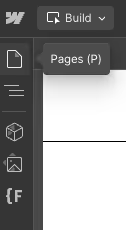
Click on the pages tab in the top left corner.
Hover over the page titled 'Blank page (duplicate)'.
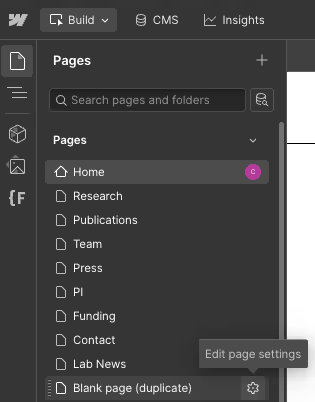
Click on the gear icon that appears next to the page name.
Click the duplicate page button.

Write a page name and fill out the page's SEO settings below. Here is a Webflow University article on how to do this.
Note: After creating a new page, you’ll need to give visitors a way to access it. The simplest and most common method is adding a link to the site’s navigation bar (navbar). This must be done in the Designer, not Build Mode.
Because the navbar affects every page on the site, follow these steps carefully.
Steps to Add a Nav Link
- Open the Designer in Design Mode
- Open the Webflow Designer.
- Make sure you are in Design Mode, not Build Mode.
- Select the Navbar
- Hover over the navbar at the top of the page until it highlights green.
- Double-click the navbar to enter it.
- Select an Existing Nav Link
- Click once on a nav link near where you want the new link to appear.
- Do not double-click — double-clicking will edit the text instead of selecting the link.
- Duplicate the Nav Link
- With the nav link selected, use your keyboard to copy and paste it.
- Mac: Cmd + C, then Cmd + V
- Windows: Ctrl + C, then Ctrl + V
- Mac: Cmd + C, then Cmd + V
- With the nav link selected, use your keyboard to copy and paste it.
- Edit the New Nav Link
- Click once on the newly duplicated nav link to select it.
- In the right side panel, open the Settings tab.
- Update Link Text
- Under Nav Link Settings, enter the text for your new link.
- Set the Link Destination
- Under the text field, set the link type to Page (second icon).
- Select your new page from the dropdown list.
- Publish Your Changes
- Click Publish to make the new navigation link live.
Important Tips
- Always duplicate an existing nav link — never create one from scratch.
- Do NOT drag any of the elements with your mouse. This will restructure the page.
- Changes to the navbar affect the entire site.
- If something looks wrong, stop and undo your steps. If you cannot undo then restore from a backup or contact us.
Previous lesson:
Next lesson: